
EduCtrl is a feature-rich cloud-based software to manage all aspects of Overseas Education Consultancy Business, Training/Coaching Institutions.
+91-924-213-7092
Give us a call
info@eductrl.com
Drop us email
Reassigning Leads Among Team Members
This article explains how to reassign leads from one staff member to another in EduCtrl CRM. This is useful when workloads shift, team roles change, or leads need to be redistributed for better conversion.
Prerequisites
- Admin access required
- Staff members must already exist and have the appropriate role and branch access
A. Reassigning a Single Lead
- Log in to EduCtrl CRM with appropriate permissions.
- Go to the Leads module from the left-hand menu.
- Search or filter to find the lead you want to reassign.
Click the Edit icon next to the Status.
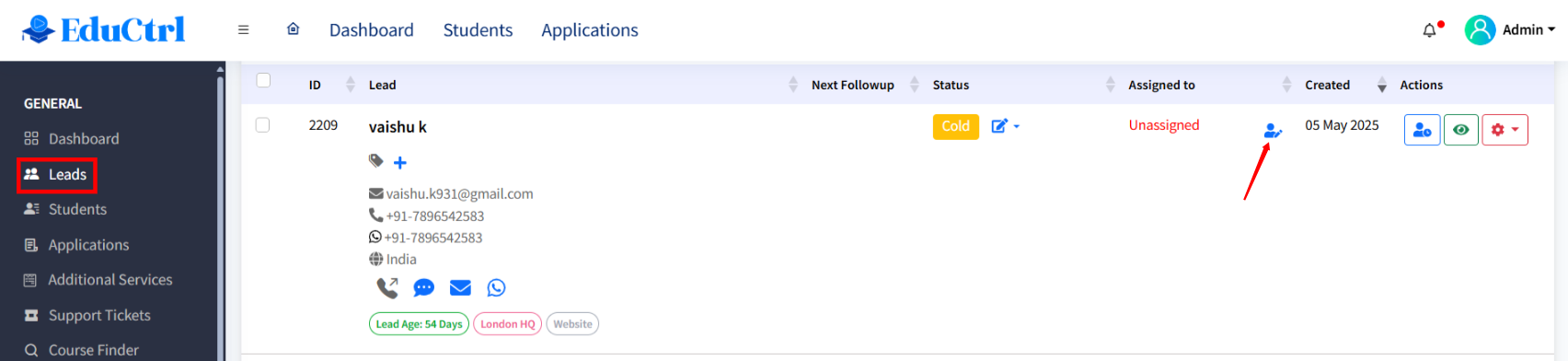
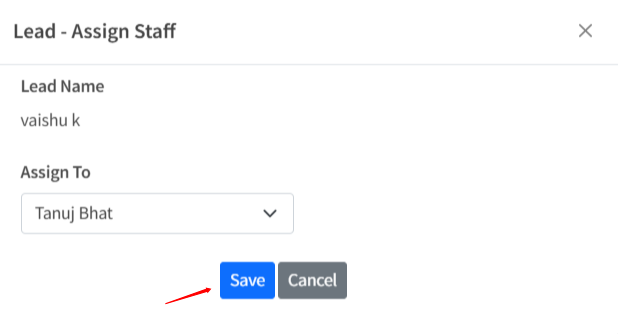
- In the Assigned To field, select the new staff member from the dropdown.
Click Save to update the lead assignment.
B. Bulk Reassigning Leads
To reassign multiple leads at once:
- Go to Leads from the main menu.
- Use filters (e.g., lead source, country, staff, date) to narrow down the list.
- Select the checkboxes next to the leads you want to reassign, or click the top checkbox to select all.
Click the Bulk Action dropdown at the bottom.
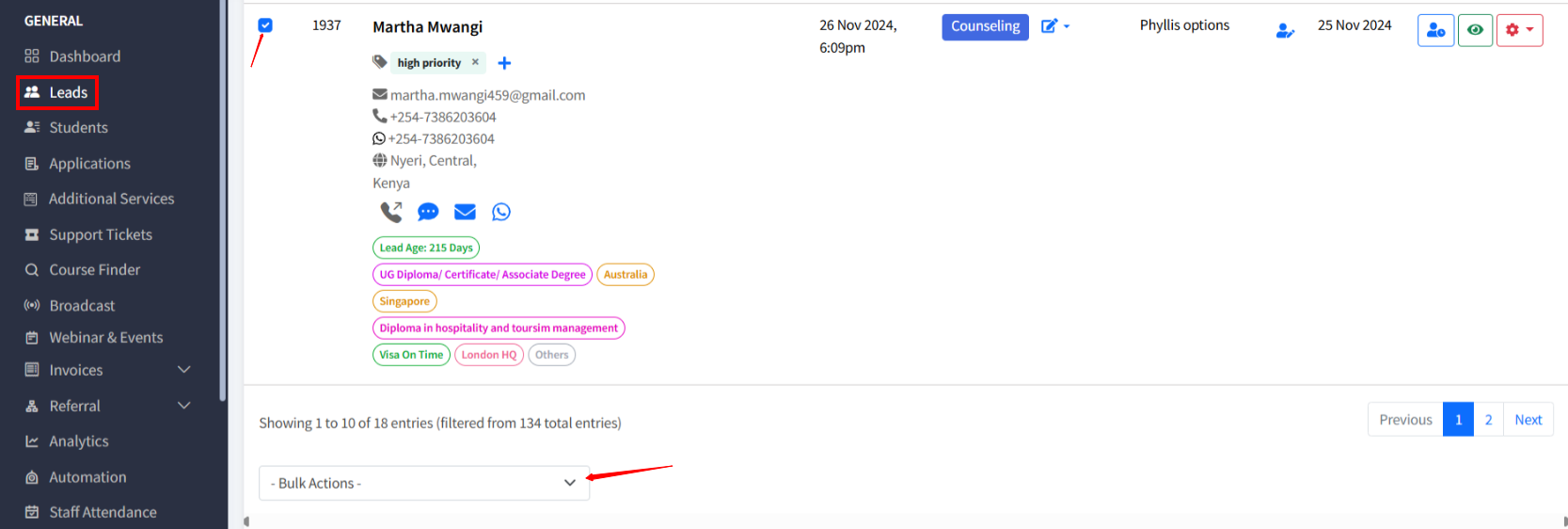
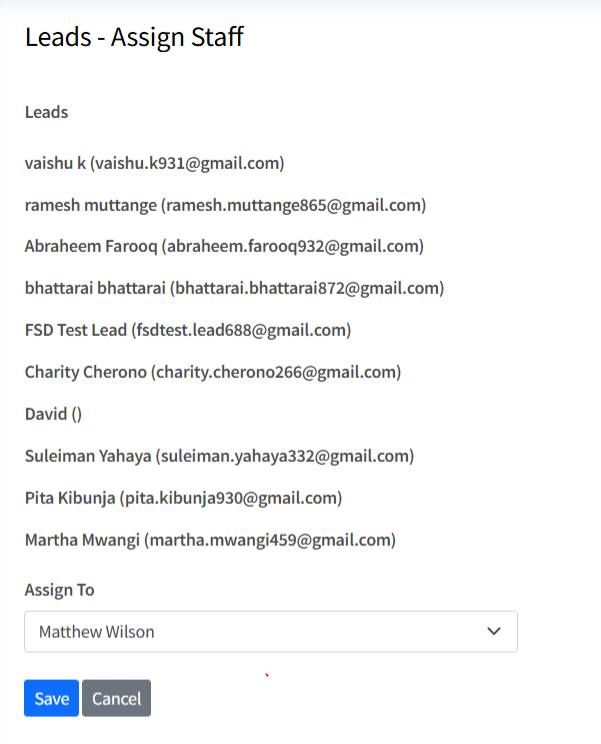
- Choose Assign Leads to Staff.
- In the popup, select the new staff member.
Click Save to apply the reassignment to all selected leads.
Best Practices
- Review the lead’s status and communication history before reassigning.
- Use bulk reassignment when changing team responsibilities or during handovers.
- Use Lead Assignment Rules for consistent and automated lead distribution.
- Ensure the new assignee has access to the correct branch and permissions.
Tags:
reassign leads
transfer leads
move leads
bulk reassignment
bulk transfer
lead assignment
assign leads
change assignment
← Back